Connect Kafene to your store
Add lease-to-own at checkout — no coding required. Install the plugin, copy your keys from the Merchant Portal, paste them into WooCommerce, choose Sandbox or Production, then mark which products customers can lease. Shoppers complete apply, sign, and pay inside the Kafene modal.
.zip)Add the Kafene plugin to WordPress
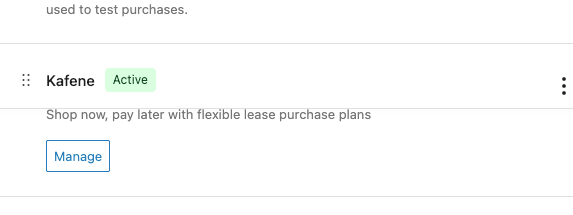
In WordPress, go to Plugins → Add New → Upload Plugin, choose the Kafene .zip file, and click Install Now. Then open WooCommerce → Settings → Payments, find Kafene in the list, and click Manage to open its settings. (You’ll switch Kafene on for shoppers later, once setup is complete.)
Copy your connection details from the Merchant Portal
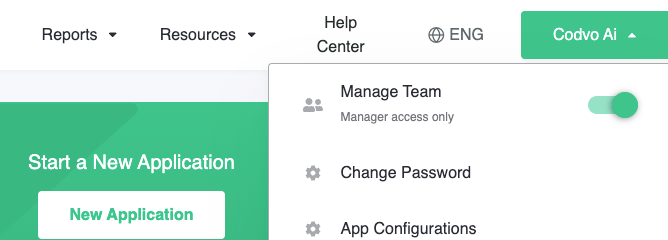
Sign in to the Kafene Merchant Portal in a separate tab. In the top-right corner, click your account name and choose App Configurations.
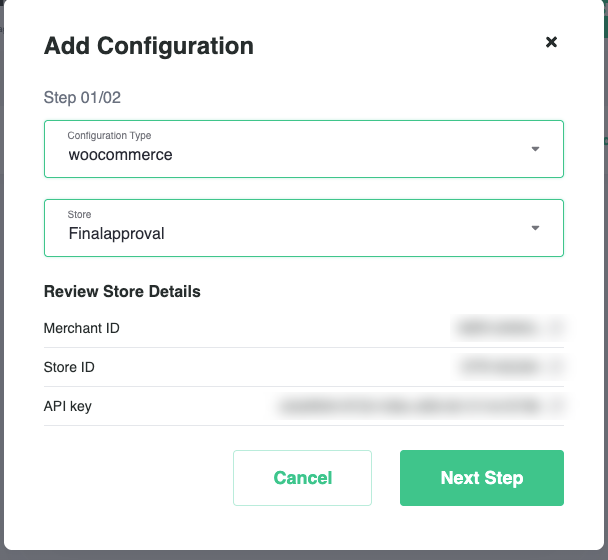
- Click Add Configuration.
- Set Configuration Type to
woocommerceand pick your Store. - The portal reveals your Merchant ID, Store ID and API key. Use the copy icons — keep this dialog open for the next step.
Paste your keys into WooCommerce
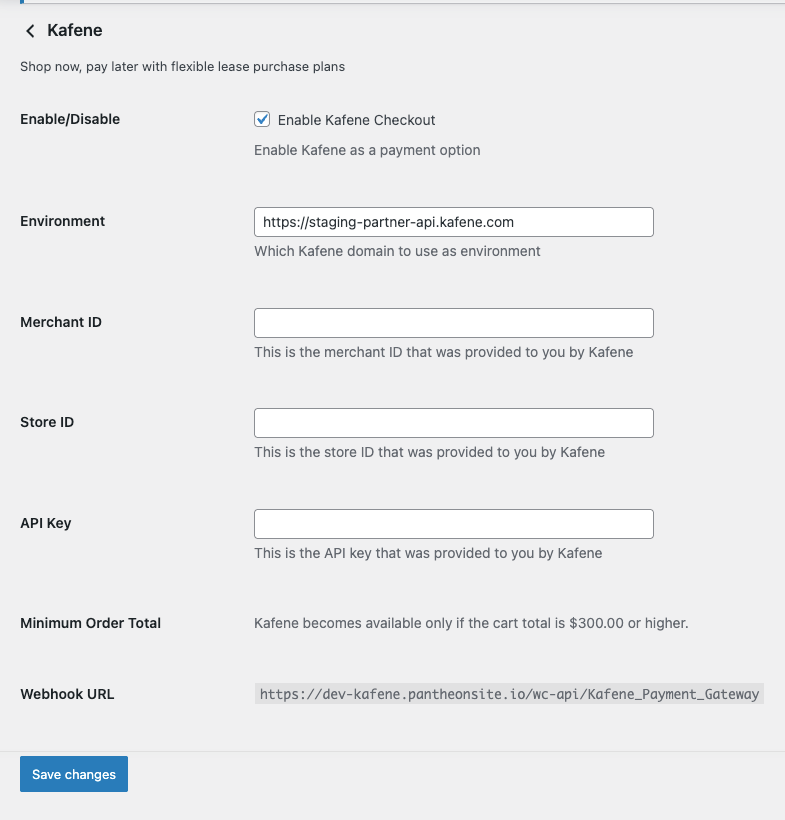
Back on the Kafene settings page from Step 1, tick Enable Kafene Checkout. Set Environment to Sandbox for testing or Production for live orders, then paste the Merchant ID, Store ID and API Key into the matching fields. Click Save changes.
Plugin 2.0+ runs a full end-to-end checkout modal. Order updates come from the Kafene SDK — you do not need to configure a store webhook.
Finish the Merchant Portal configuration
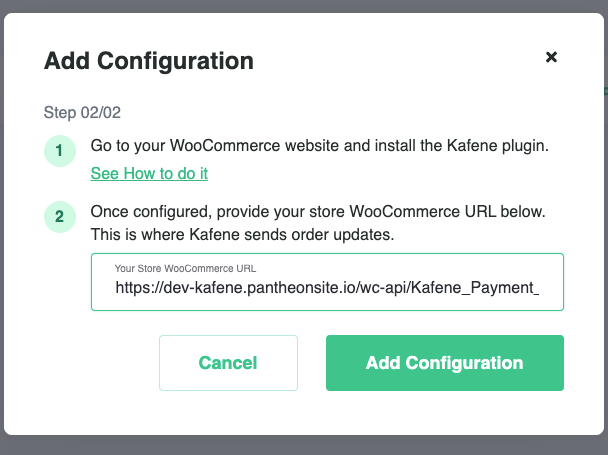
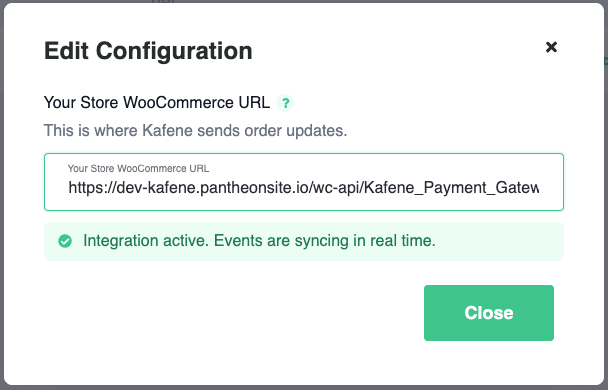
Return to the open Add Configuration dialog and click Next Step. If the portal asks for Your Store WooCommerce URL, paste your store’s public homepage URL (for example https://yourstore.com) — this identifies the store in the portal and is not a payment webhook. Then click Add Configuration.
Mark which products are leasable
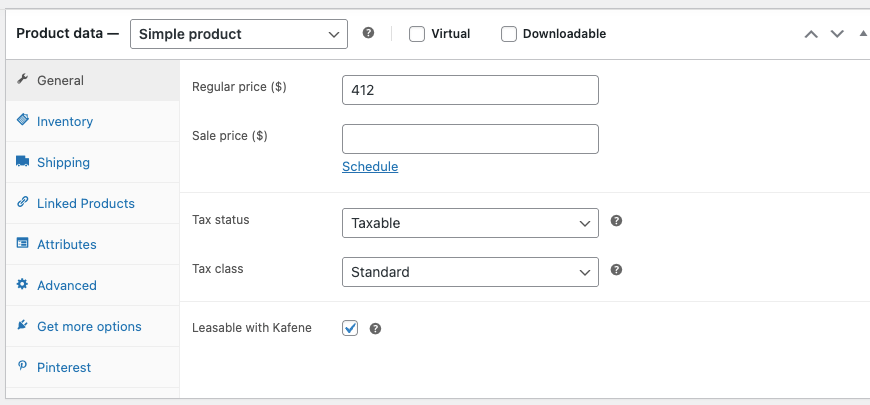
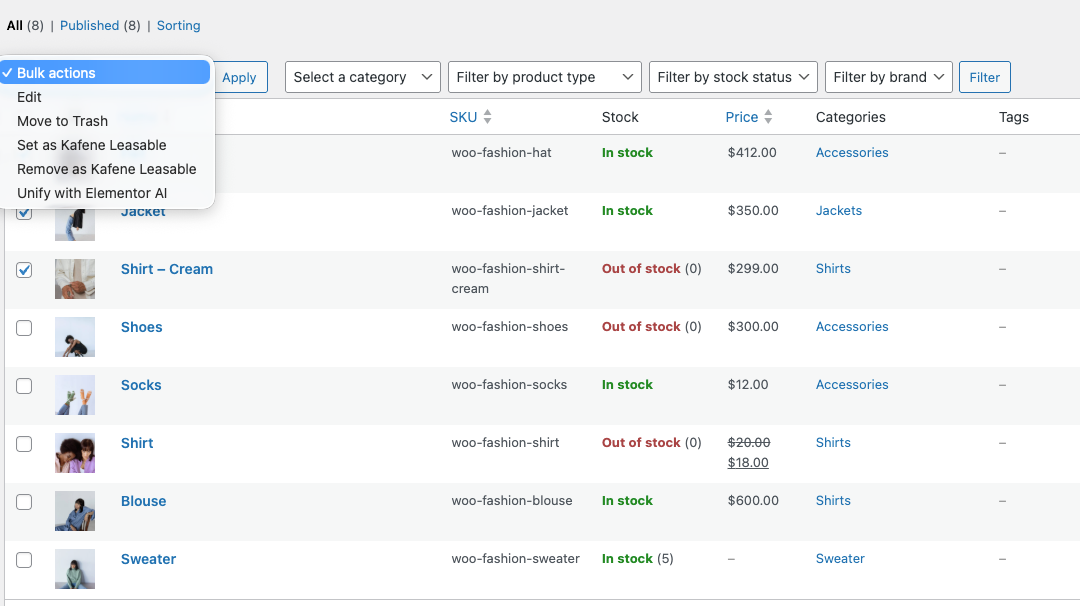
Only items you mark as leasable will offer Kafene at checkout. Your account manager will share a list of items that aren’t eligible for leasing. You can update products one at a time or in bulk.
Open the product under WooCommerce → Products, scroll to Product data, and tick Leasable with Kafene on the General tab. Click Update.
In the Products list, select the items, open Bulk actions, choose Set as Kafene Leasable and click Apply. Use Remove as Kafene Leasable to take items back out.
That’s it — you’re connected
Kafene now appears as a payment option at checkout. Shoppers can start using lease-to-own right away.
Test in staging first
Run a few test applications with Environment = Sandbox to confirm the full modal flow (apply → approve → sign → pay) before switching to Production. Use the sandbox credentials your account manager provides.
For staging you’ll get two Store IDs — one that always approves and one that always denies — so you can test both decision paths. Applications processed in staging are not valid and should never be fulfilled.
Input validation rules
- Give each application entirely unique values — name, email, SSN and phone.
- For the bank account, use the Stripe test numbers: routing
110000000, account000123456789. - No Gmail address? The “+” trick (e.g.
[email protected]) gives unique emails to one inbox.
- No SMS is sent in sandbox. Contract signing happens in the checkout modal (single flow).
- Sandbox may still send real emails for some notifications when a valid address is used — only use addresses you control.
Troubleshooting
Unexpected decisions? Change the SSN, phone or name to keep the application unique.
Inconsistent results between attempts? Earlier applications and users persist in the system and affect outcomes — generate fresh test data for each run.
After you go live
How Kafene orders move through WooCommerce, and how to handle changes once a lease is in progress.
Order statuses
The order is created while the customer completes their application and lease agreement. If Kafene denies the application, the order stays here until the customer picks a different payment method.
The customer has signed their lease agreement and the order is ready to be fulfilled.
The customer has received their items. Once an order is marked completed, it becomes eligible for funding.
Cancellations & cart adjustments
Cancellations and adjustments made in WooCommerce do not automatically update the lease agreement. Cancel or adjust the lease from your Kafene Merchant Portal. For a lease that is already Processing or Completed, contact our support team to make the change.